
Introduction
Facing an iPhone that only charges at a certain angle can be frustrating and disrupt your daily routine. This annoyance can escalate into a severe problem if not addressed properly. By understanding the causes and implementing the right solutions, you can fix the angled charging issue and ensure your device works smoothly.
Understanding the Problem
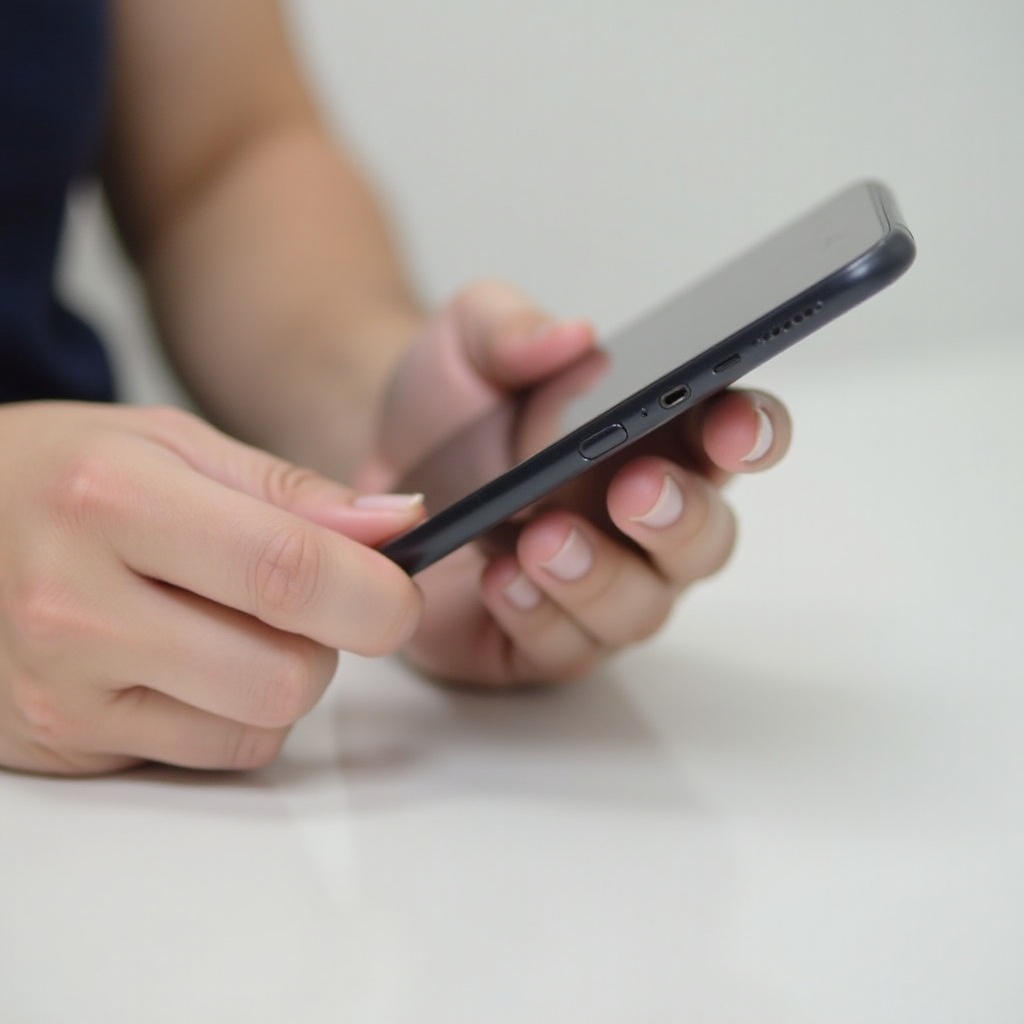
To address the problem effectively, it is crucial to identify the symptoms and understand the possible causes. An iPhone that only charges at an angle usually indicates a deeper issue that needs your attention immediately, as it might affect your device’s overall performance.
Symptoms of Angled Charging
- The iPhone only charges when the cable is positioned in a specific way.
- The charging icon fluctuates between on and off, causing intermittent charging.
- Charging seems interrupted without any apparent reason.
Possible Causes
There are several reasons why your iPhone might exhibit this behavior:
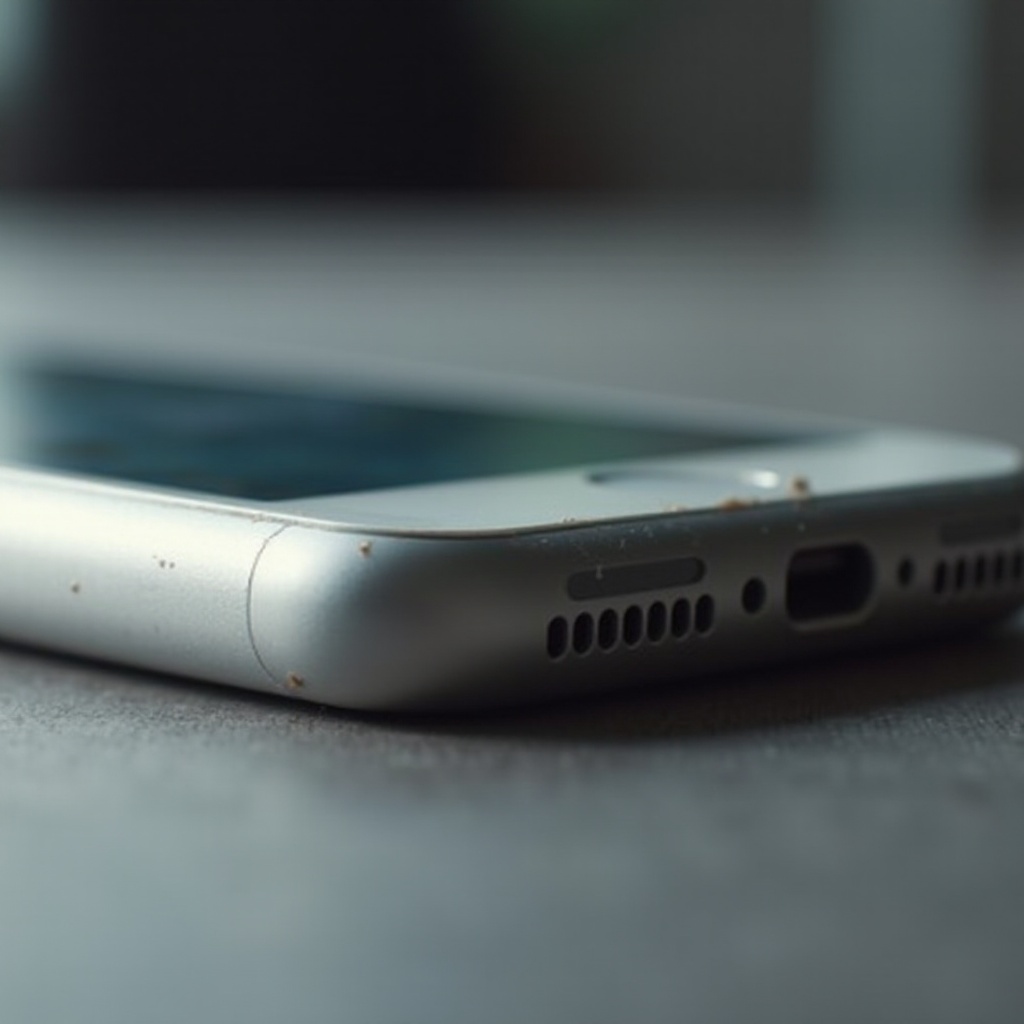
Dirty or Damaged Charging Port: Accumulated debris in the charging port can prevent a proper connection.
Faulty Charging Cable or Adapter: A poorly functioning cable or adapter might lead to improper connection and charging issues.
Software Glitches: Bugs in the software could interfere with the charging process, causing inconsistency.
Common Causes and Solutions
Understanding the potential causes sets the stage for implementing effective solutions. By tackling the root cause directly, you can eliminate this frustrating issue.
Dirty or Damaged Charging Port
A common issue with angled charging is a dirty or damaged charging port:
- Turn off your iPhone to avoid electric issues.
- Use a small, non-metallic tool or brush to gently clean the charging port.
- Consider using compressed air to blow out debris at a safe distance.
- After cleaning, test the connection by plugging in the charger to see if the problem is resolved.
Faulty Charging Cable or Adapter
If the port is not the issue, check the accessories:
- Try using a different charging cable to determine if the existing one is faulty.
- Utilize another power adapter or USB port to ensure the power source isn’t the problem.
- Make sure that all accessories are Apple-certified to prevent compatibility issues and ensure safety.
Software Glitches
Software problems can sometimes disrupt charging:
- Keep your iPhone updated with the latest iOS version to fix known bugs.
- Perform a soft reset to resolve temporary software issues by holding the home and power buttons until the Apple logo appears.
- If problems persist, consider a factory reset to clear out potential software conflicts, ensuring you back up any important data first.
Step-by-Step Troubleshooting Guide
By methodically addressing each possibility, you can pinpoint and resolve the charging issue efficiently.
Cleaning the Charging Port
- Turn off your iPhone to prevent electrical issues while cleaning.
- Use a flashlight to inspect the charging port for visible debris.
- Gently insert a toothpick or a similar non-conductive tool to remove any obstructions.
- After cleaning, test the connection by attempting to charge again.
Testing with Different Accessories
- Use an alternative charging cable to rule out cable faults.
- Try a different power adapter or USB port to eliminate the possibility of a faulty power source.
- Check the consistency of charging with these new accessories to ensure reliability.
Restarting Your iPhone
- Press and hold both the volume and side buttons until the power-off slider appears.
- Slide the button to turn off the device and wait a few seconds before restarting.
- After rebooting, attempt to charge your phone again to see if the issue is resolved.
Prevention Tips
Prevention is key to maintaining the longevity of your iPhone and avoiding future charging issues. Incorporating regular maintenance into your routine can save you time and hassle.
Regular Maintenance Practices
- Regularly clean the charging port to prevent dirt buildup using safe, non-invasive methods.
- Frequently inspect cables and adapters for wear and tear to catch damage early.
- Store your charging cables properly to prevent kinks and breakage.
Using Certified Accessories
- Purchase accessories directly from Apple or trusted retailers to ensure they’re certified.
- Avoid non-certified third-party accessories that may not work properly and could damage your device.
When to Seek Professional Help
If your iPhone continues to have charging issues despite trying all troubleshooting steps, professional help might be necessary. Persistent problems can suggest a need for expert assessment and possibly repair.
Signs of Hardware Damage
- Charging issues persist despite all efforts to troubleshoot.
- Physical damage is visible on the port or other components impacting charging.
Repair and Replacement Options
- Consult Apple Support for troubleshooting and repairing services available to your device.
- Visit an Apple store or an authorized service provider for professional diagnosis and repairs.
- Weigh the repair costs and possible device replacement based on the severity of the issue and the age of your device.
Conclusion
Understanding and resolving iPhone charging issues improves its performance and longevity. By following these troubleshooting steps, you can address the problem effectively, preventing future charging disruptions and maintaining your device’s health.
Frequently Asked Questions
Why does my iPhone only charge at an angle?
Your iPhone might charge at an angle due to debris in the charging port or a faulty cable. Cleaning and using certified accessories can help resolve this.
How can I clean my iPhone’s charging port safely?
Turn off your iPhone and use a non-metallic brush or compressed air to gently clean the port without causing damage.
Is it safe to use third-party charging accessories?
Use only Apple-certified third-party accessories to ensure compatibility and safety, as non-certified options might cause damage.