
Moving data between MacBooks can seem overwhelming, especially if you’ve accumulated a lot of information on your device. Whether you’re switching to a new model or consolidating data from multiple devices, knowing how to efficiently transfer data ensures a smooth transition. This guide delves into various methods for data transfer, helping you choose the most secure and effective option for your needs.
Introduction
When migrating data between MacBooks, efficient planning is key. Data transfer is essential, whether you’re upgrading to a new MacBook or unifying data across devices. With tools like Migration Assistant, iCloud, and AirDrop, you have multiple options to meet your needs. This guide covers all aspects, from preparing your MacBooks to understanding each transfer method, ensuring a flawless transition.
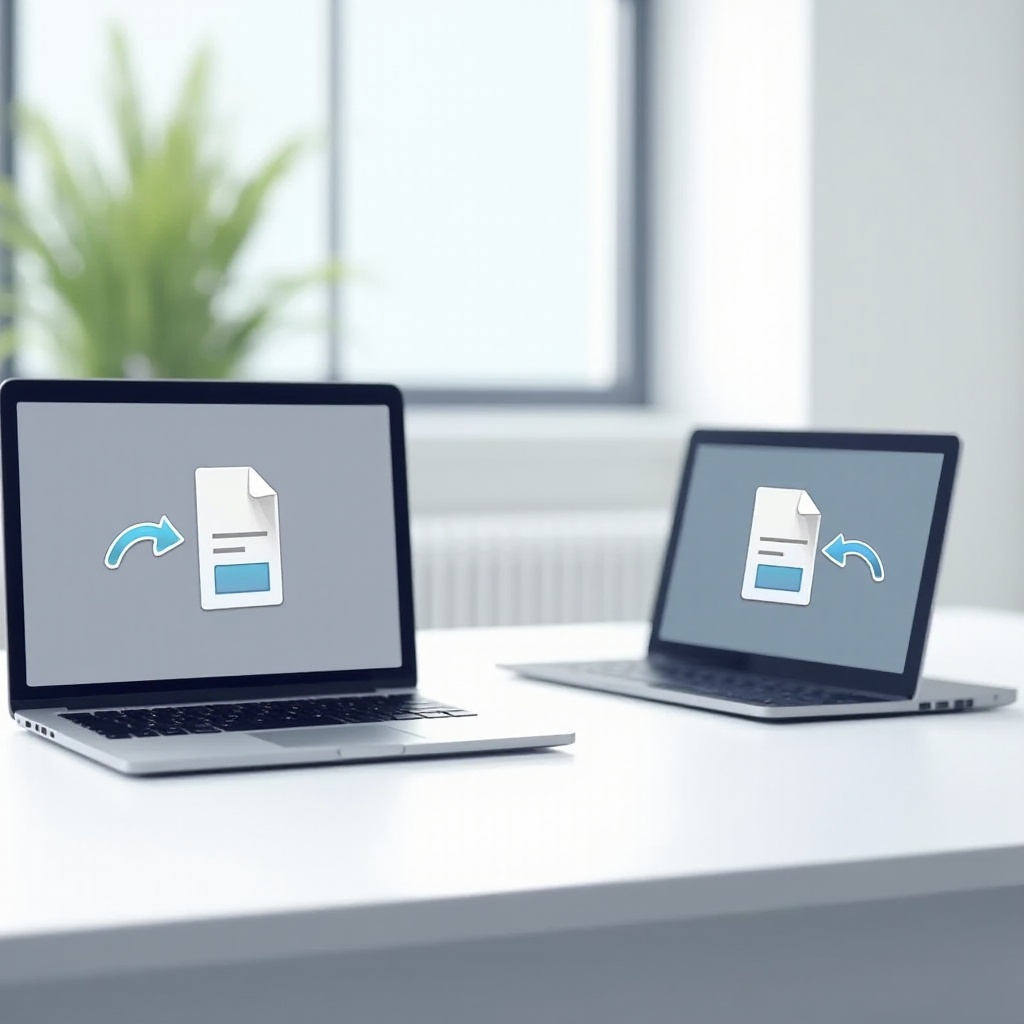
Preparing for Data Transfer
Proper preparation can prevent data loss and streamline the transfer process. Taking the time to get your MacBooks ready is critical to a successful migration.
-
Backup Important Data: Before starting the transfer, make sure to back up all your important data. Use Time Machine or an external drive for this purpose to act as a safeguard in case of unexpected issues.
-
Ensure Both MacBooks Are Updated: Verify that both your current and new MacBook are running the latest version of macOS. System updates have important fixes that aid the transfer process.
-
Check Available Storage Space: Ensure the new MacBook has sufficient space for your data. Check this under ‘About This Mac’ > ‘Storage’ and manage your storage if necessary.
Once both devices are prepared, you can proceed with your chosen method of data transfer.
Using Migration Assistant for Data Transfer
Migration Assistant is a straightforward tool for transferring everything from files to settings between MacBooks.
-
Introduction to Migration Assistant: Migration Assistant is built into macOS to help you transfer data efficiently. It is perfect for users wanting to migrate all elements seamlessly.
-
Step-by-Step Transfer Guide:
- Launch both MacBooks and open Migration Assistant.
- Connect the devices to the same Wi-Fi network or use a Thunderbolt or Ethernet cable for faster transfer.
- Follow the prompts to select the data for transfer.
-
Let Migration Assistant handle the process, keeping in mind it may take time based on data size.
-
Troubleshooting Common Issues: If you’re facing issues, ensure both devices are on the same network and cables are secure. Restarting and retrying often resolves common problems.
After completing the Migration Assistant process, your new MacBook is populated with your existing data. For cloud solution enthusiasts, moving on to iCloud could be beneficial.

Transferring Data via iCloud
iCloud provides a wireless and flexible way to transfer files, ideal for users already embracing Apple’s ecosystem.
-
Setting Up iCloud on MacBooks: Log in with the same Apple ID on both MacBooks and verify enough iCloud storage. Enable ‘iCloud Drive’ in ‘System Preferences’ under ‘Apple ID’.
-
Transferring Files Using iCloud: Manually move files into iCloud Drive or let automatic services like iCloud Photos sync data across devices. Ensure a stable internet connection for smooth transfers.
-
Advantages and Limitations of iCloud: iCloud syncs data seamlessly, yet transferring large sets of data may require ample storage and time.
Given iCloud’s strengths and limitations, consider using an external drive for larger data transfers without relying on an internet connection.
Using External Drives for Data Transfer
For large data transfers, external drives offer a dependable alternative, bypassing internet constraints.
-
Choosing the Right External Drive: Opt for a high-capacity USB-C or Thunderbolt drive, formatted for Mac (APFS or Mac OS Extended recommended).
-
Data Transfer via USB and Thunderbolt: Connect your drive to the original MacBook, copy the files you need, then connect it to the new MacBook to complete the transfer.
-
Security Tips for External Drives: Encrypt your external drive to protect data in case of loss or theft.
After using external drives, consider AirDrop for one-off, quick file transfers.
Wireless Data Transfer Using AirDrop
AirDrop excels at rapidly transferring smaller files wirelessly, perfect for quick and straightforward transfers.
-
Enabling AirDrop on MacBooks: Ensure Bluetooth and Wi-Fi are enabled. In Finder, navigate to AirDrop and set it to be discoverable by everyone.
-
Steps to Transfer Files with AirDrop:
- Open Finder, locate the file you need to transfer.
- Drag the file to the AirDrop window, dropping it onto the receiving MacBook’s icon.
-
Confirm the transfer on the second MacBook.
-
Potential Limitations and Solutions: While perfect for small data, AirDrop isn’t designed for bulk transfers, where Migration Assistant or external drives might be better.
Following these methods, ensure all data is correctly transferred using a post-transfer checklist.
Post-Transfer Checklist
After the transfer, verify that everything operates as expected to avoid future issues.
-
Verifying Data Integrity: Open your files and applications to confirm they’re intact and functioning correctly.
-
Reestablishing Software Settings: Adjust application settings to match your preferences and input software licenses where needed.
-
Conducting Security Checks: Ensure that any sensitive information is secure, and configure additional security settings on the new MacBook.
Conclusion
Successfully transferring data between MacBooks allows you to use your new device with confidence. By preparing properly, selecting the right transfer method, and checking everything post-transfer, you protect your data and ensure a hassle-free migration.
Frequently Asked Questions
How long does it take to transfer data between MacBooks?
The time varies based on data amount and method. Migration Assistant can take from minutes to hours.
Can I transfer applications and settings along with files?
Yes, Migration Assistant allows you to migrate applications, settings, and user accounts.
What should I do if I encounter errors during the data transfer?
Check your network, restart both devices, and ensure you’re using the latest macOS. Try another method if problems persist.