
When the Mail icon goes missing on your iPhone, it can disrupt your day. The Mail app is central for managing emails, so losing it can be a major inconvenience. This guide explores why the Mail icon might disappear and offers solutions to restore it.
Introduction
You open your iPhone only to discover that the Mail icon is missing. This common issue can arise from various causes, prompting frustration among users. Whether it’s due to an iOS update or accidental manipulation of settings, identifying the problem is key to resolving it. Understanding the origin of the issue helps ensure it won’t reoccur.
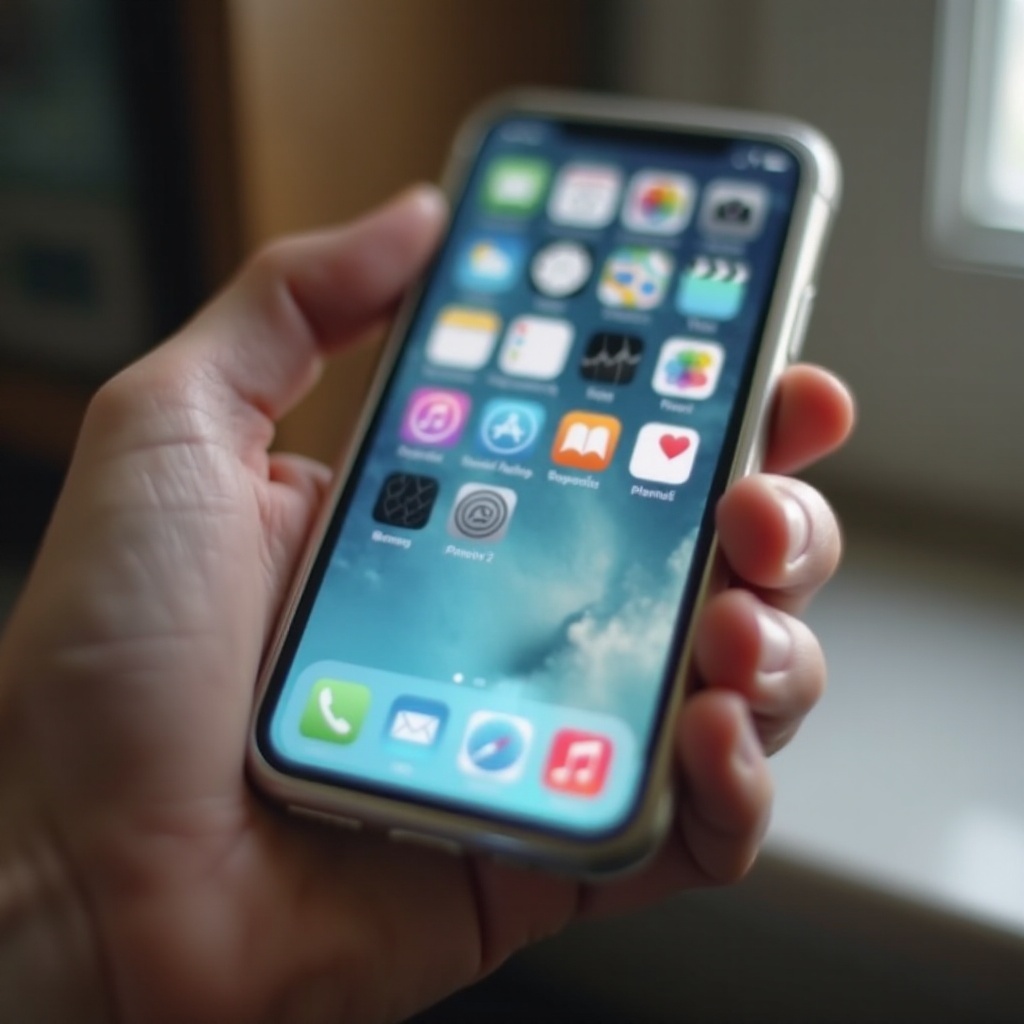
Common Causes for the Mail Icon Disappearance
Identifying why the Mail icon vanished is crucial for fixing it. Here are the main reasons:
- Recent iOS Updates: Updates can alter app icons and settings, resulting in icons moving or disappearing.
- Accidental App Removal: You may accidentally delete the app, removing it from your Home Screen without erasing your data.
- Changes in Restrictions and Settings: Restrictions might hide apps or move them unexpectedly.
By pinpointing the cause, you can address the issue effectively.
Quick Solutions to Restore the Mail Icon
After identifying possible causes, start with some quick fixes:
- Restart Your iPhone: Hold the power button and swipe to power off, then restart the device to resolve minor glitches.
- Search for the Mail App Using Spotlight: Swipe down from the Home Screen and type ‘Mail’ to find the app if it’s hidden.
- Check All App Folders: Look through each folder to see if the Mail icon is misplaced.
If these solutions don’t work, further action is needed.
Reinstalling the Mail App from the App Store
If the shortcuts fail, try reinstalling the app:
- Open the App Store.
- Search for ‘Mail’.
- If it’s removed, a cloud icon will appear—tap it to reinstall.
- Check the Home Screen for the icon.
This ensures you have the latest version and functionality.

Adjusting iPhone Settings for App Visibility
If reinstalling doesn’t help, it may be time to check your settings:
- Reset Home Screen Layout: Go to Settings > General > Reset > Reset Home Screen Layout to revert icons to default positions.
- Check and Adjust Restrictions Settings: Navigate to Settings > Screen Time > Content & Privacy Restrictions > Allowed Apps and enable Mail.
- General Settings Adjustments: Verify that no settings are hiding apps or causing display issues.
These adjustments help maximize app visibility on your device.
Advanced Troubleshooting Tips
If the icon is still missing, consider more advanced solutions:
- Update to the Latest iOS Version: Visit Settings > General > Software Update to keep your system current and minimize glitches.
- Perform a Soft Reset: Hold the Home button and power button simultaneously until the Apple logo appears.
- Contact Apple Support for Further Assistance: For persistent issues, seek personalized help from Apple Support for device-specific problems.
With these strategies, your iPhone should return to optimal function.
Conclusion
To restore your Mail icon, understand the causes and apply the appropriate solutions. From checking settings to reinstalling the app, these steps should help resolve the issue. Keeping your iOS updated and reviewing restrictions regularly can prevent recurrence. If problems persist, consider consulting Apple Support.
Frequently Asked Questions
How do I know if the Mail app is truly missing?
You can use Spotlight search to look for ‘Mail’. If it’s found, the app is not deleted, just misplaced.
Will reinstalling the Mail app cause me to lose any emails?
No, your emails remain on the server, unaffected by app reinstallation.
What should I do if my Mail app keeps disappearing periodically?
Regularly check updates and restrictions. Ensure your iOS is current and reset your Home Screen layout if needed.