
Introduction
Experiencing a frozen Nintendo Switch can be incredibly frustrating, especially when you are in the middle of a game or about to start a new adventure. This common issue can throw a wrench in your gaming plans. In this guide, we will explore the reasons why your Nintendo Switch might freeze and provide effective troubleshooting and prevention techniques. With these steps and preventative measures, you can keep your gaming uninterrupted and enjoyable.
Understanding Why Your Nintendo Switch Freezes
To effectively tackle a freezing Nintendo Switch, it is essential to understand the potential causes. Recognizing these can aid in diagnosing and resolving the issue promptly.
-
Software Glitches and Bugs: Outdated or corrupted system software can lead to glitches, which are a common cause for freezing. Ensuring your software is up to date minimizes such issues.
-
Overheating: Overheating is a frequent culprit behind a frozen console. When engaged in extended gameplay, the device may overheat, especially in areas with poor ventilation, causing it to freeze as a self-preservation measure.
-
Insufficient Storage Space: A full storage capacity can result in crashes. With insufficient memory, the system struggles to operate smoothly, leading to performance hiccups such as freezing.
Having identified possible reasons for a frozen Switch, let’s delve into some immediate actions you can take when your device freezes during a game.
Immediate Troubleshooting Steps
If you find your Nintendo Switch frozen, consider these quick troubleshooting methods:
- Perform a Hard Reset:
- Hold the power button for roughly 12 seconds.
- Release the button and allow the device to rest for a few moments.
-
Power it back on to check if the freezing issue is resolved.
-
Check for Software Updates:
- Head to the settings menu, select ‘System’, then ‘System Update.
-
Confirm that your console and games have the latest updates installed.
-
Ensure Proper Airflow and Cooling:
- Avoid playing in confined or heated environments.
- Utilize a cooling fan or stand to aid ventilation.
- Allow breaks in gameplay if the console becomes excessively hot.
Once you have implemented these initial troubleshooting steps, you’ll likely find a solution to the freezing problem. If these steps don’t resolve the issue, consider applying more advanced troubleshooting techniques.
Advanced Troubleshooting Techniques
For persistent freezing problems, advanced troubleshooting may be necessary:
- Using Safe Mode to Fix Issues:
- Hold the power button, select ‘Power Options’, then ‘Restart’ while holding the ‘Volume Up’ button.
-
This starts the console in safe mode, where you can troubleshoot without background interference.
-
Clearing Cache and Temporary Files:
- In the settings menu, navigate to ‘Data Management’ and choose ‘Clear Cache.
-
This process can resolve minor glitches and graphical bugs causing the freezing.
-
Resetting to Factory Settings:
- If necessary, a factory reset can be performed to restore system functionality. Go to ‘System’ in settings, then ‘Formatting Options.
- Select ‘Reset Cache’ and follow the instructions, ensuring data backup prior to action.
These advanced techniques are essential for addressing severe freezing issues effectively. After resolving the immediate concerns, consider implementing preventive measures to minimize future occurrences of freezing.
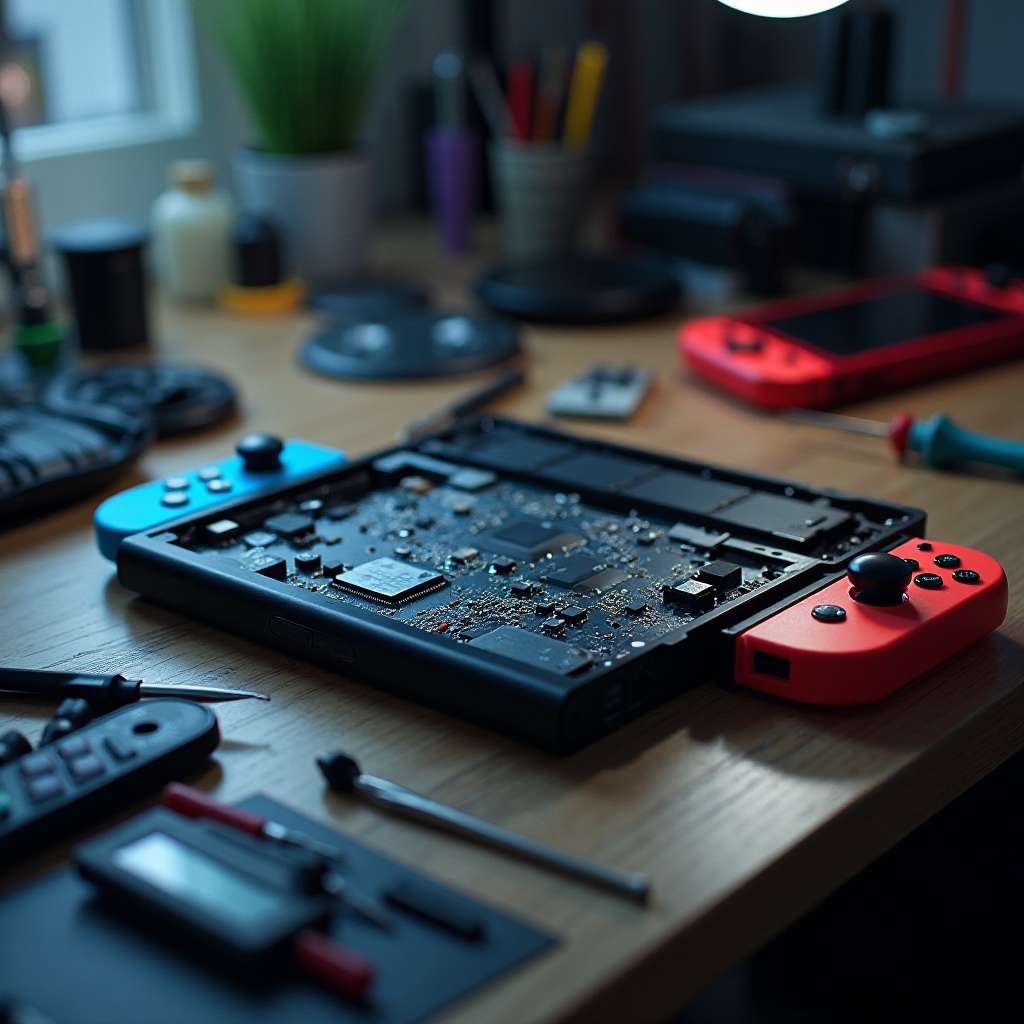
Preventive Measures to Avoid Future Freezing
It’s crucial to integrate regular maintenance and proper handling to prevent future freezing:
- Regular System and Game Updates:
-
Keep your system and games updated to access the latest patches and bug fixes, which often enhance stability.
-
Adequate Device Maintenance:
-
Clean your console’s hardware regularly to prevent dust accumulation, which can affect performance.
-
Proper Storage Management:
- Monitor your storage levels. Remove unnecessary files, applications, and transfer data to a larger SD card if required.
By incorporating these preventive strategies into your maintenance routine, you can significantly reduce the chances of future freezing problems and maintain a smooth gaming experience. Persistent issues, however, may necessitate seeking professional help.
When to Contact Nintendo Support
If your console remains frozen after attempting all troubleshooting methods, consider reaching out to Nintendo Support. Consistent hardware issues or unresolved freezing may suggest a more serious problem requiring professional intervention.
Conclusion
A frozen Nintendo Switch can disrupt your gaming, but with the right approach, you can resolve the immediate problem and prevent it from returning. Understanding the causes and applying the troubleshooting steps outlined in this guide will ensure that you can enjoy uninterrupted gaming sessions.
Frequently Asked Questions
How often should I update my Nintendo Switch to prevent freezing?
Regularly check for updates and install them as soon as they’re available to prevent compatibility or stability issues.
Can a faulty game cartridge cause my Switch to freeze?
Yes, dirty or damaged cartridges can lead to read errors, causing the system to freeze. Ensure your cartridges are clean and in good condition.
Is a frozen screen a sign of hardware failure on my Nintendo Switch?
While occasional freezing often stems from software issues, persistent problems might indicate hardware failure and should be inspected by Nintendo Support.