
Introduction
The ‘iPhone Red Screen of Death’ can be alarming for any iPhone user. This screen indicates problems that, if left unaddressed, can lead to significant malfunctions. Knowing how to identify, resolve, and prevent this issue is crucial for maintaining your device’s functionality. This guide will provide the necessary steps to handle this situation effectively.
What is the ‘iPhone Red Screen of Death’?
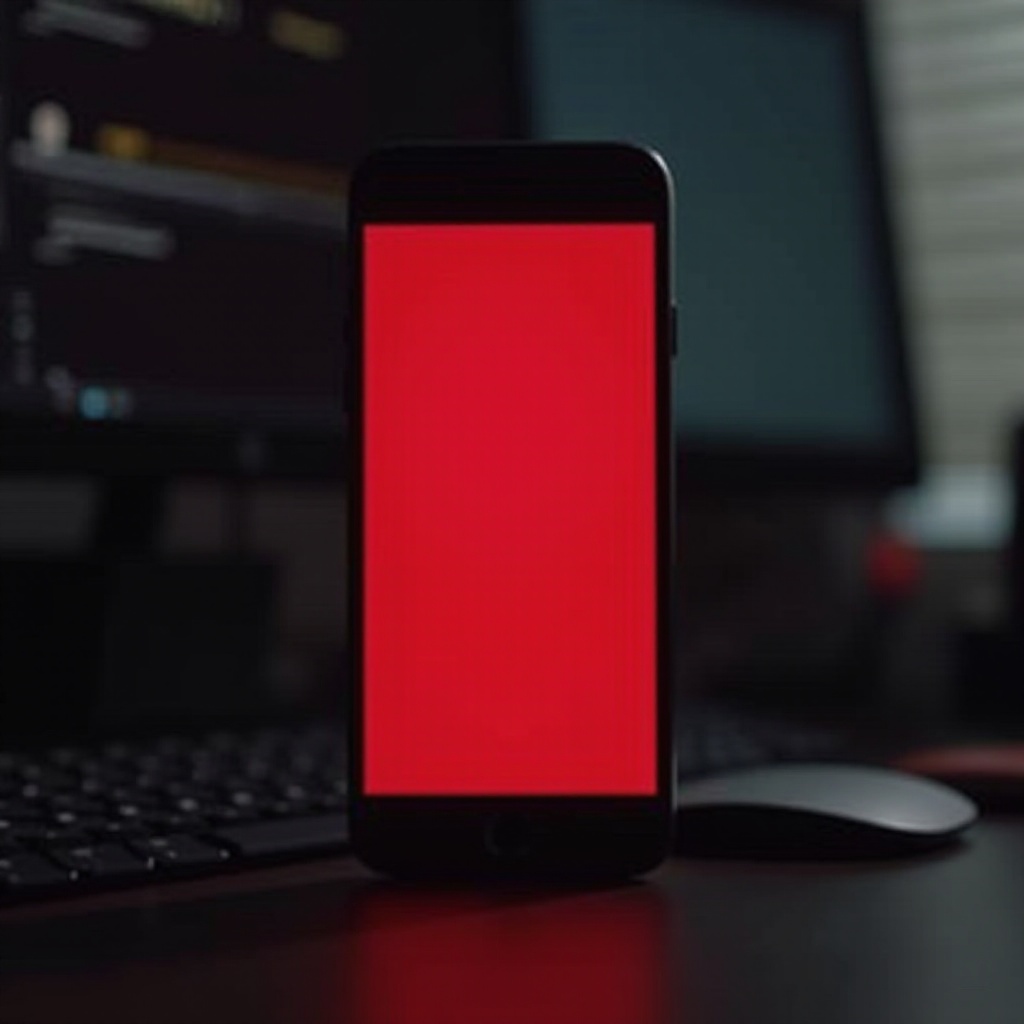
When your iPhone’s display turns red, it can either render your phone temporarily unusable or signal a deeper issue. Unlike more common problems, the red screen often suggests severe software or hardware malfunctions. Recognizing this issue is the first step in taking appropriate action.

Causes of the Red Screen Issue
Awareness of what causes the red screen problem can guide your troubleshooting efforts. Here are some of the primary causes:
-
Software Bugs or Glitches: Incorrect or incomplete iOS updates might destabilize the system, presenting issues like the red screen.
-
Hardware Failures: Physical damage or internal component defects such as with the GPU or motherboard might cause persistent red screens.
-
Overheating: Prolonged exposure to heat might damage internal components, leading to a red screen.
By understanding these causes, you can better assess the steps needed to address the issue.
Immediate Steps to Take When Encountering the Red Screen
If your iPhone displays a red screen, quick intervention is key. Start by:
- Performing a Force Restart:
- iPhone 8 and Later: Quickly press and release the Volume Up button, then the Volume Down button. Hold the Side button until the Apple logo appears.
- iPhone 7 and 7 Plus: Hold the Volume Down and Sleep/Wake buttons until the Apple logo appears.
-
iPhone 6s and Earlier: Hold both the Home and Top (or Side) buttons until the Apple logo.
-
Checking for Software Updates:
- Connect your iPhone to a computer.
- Open iTunes (for Windows or older macOS) or Finder (for macOS Catalina or later).
- Verify and apply any available iOS updates that can resolve identified bugs.
Implementing these initial steps can often resolve the red screen issue, restoring access to your iPhone.
Advanced Solutions to Fix the Red Screen
If the issue persists, proceed with advanced methods:
- Restoring iPhone via iTunes or Finder:
- Connect your iPhone to the computer.
- Launch iTunes (on PCs or older macOS) or Finder (on macOS Catalina or later).
-
Choose ‘Restore iPhone’ to reinstall iOS without losing data.
-
Using Recovery Mode:
- Initiate a connection between your iPhone and the computer.
- Force restart your device.
-
If Recovery Mode appears, select ‘Restore’ to resolve deeper software issues.
-
DFU Mode Restoration:
- Enter DFU Mode if Recovery Mode fails, bypassing the iOS to address the deepest software concerns.
While these techniques can resolve software-based problems, persistent issues may require further action, which we address in the next section.
When to Seek Professional Help
If advanced troubleshooting doesn’t solve the problem, professional assistance may be necessary. Consider reaching out for expert help:
- If the device shows no improvement after exhaustive software interventions.
- When there’s visible physical damage to the iPhone that could affect internal components.
- To leverage warranty benefits by having Apple-certified technicians handle complex issues.
Professional support ensures that intricate and possibly warranty-covered hardware issues are handled appropriately.
Preventative Measures to Avoid the Red Screen
Preventing the ‘Red Screen of Death’ should be a priority to maintain your device’s health:
-
Regular Software Updates: Keep your iPhone’s operating system updated to benefit from critical patches and improvements.
-
Frequent Data Backups: Use iCloud or iTunes to back up your device’s data regularly.
-
Avoiding Extreme Conditions: Protect your iPhone from prolonged heat exposure or physical shock.
By adhering to these preventative measures, you ensure your device functions optimally with reduced risk of encountering severe issues like the red screen.
Conclusion
Being equipped with the right steps to handle an iPhone red screen issue can ease worry about unexpected downtime and data loss. Identifying the causes, applying immediate fixes, and knowing when to consult professionals are crucial steps for iPhone maintenance. Embrace preventative measures to mitigate potential risks and ensure your device continues to serve you reliably.
Frequently Asked Questions
What should I do if a force restart doesn’t work?
Attempt a software update via iTunes or Finder and consider using Recovery or DFU mode if no improvement is seen.
Can third-party software solutions help with hardware issues?
While third-party solutions may help with software problems, hardware issues likely require professional repairs.
How frequently should I back up my iPhone data?
It’s advisable to back up your data weekly or before making significant updates to avoid losing essential data.