
Introduction
The iPhone 16 offers top-tier features, and understanding its microphone technology is crucial. Whether it’s for calls, recordings, or voice commands, knowing the exact location of your device’s microphones can enhance your user experience. This guide will explore where to find these microphones and provide useful tips to optimize their performance.
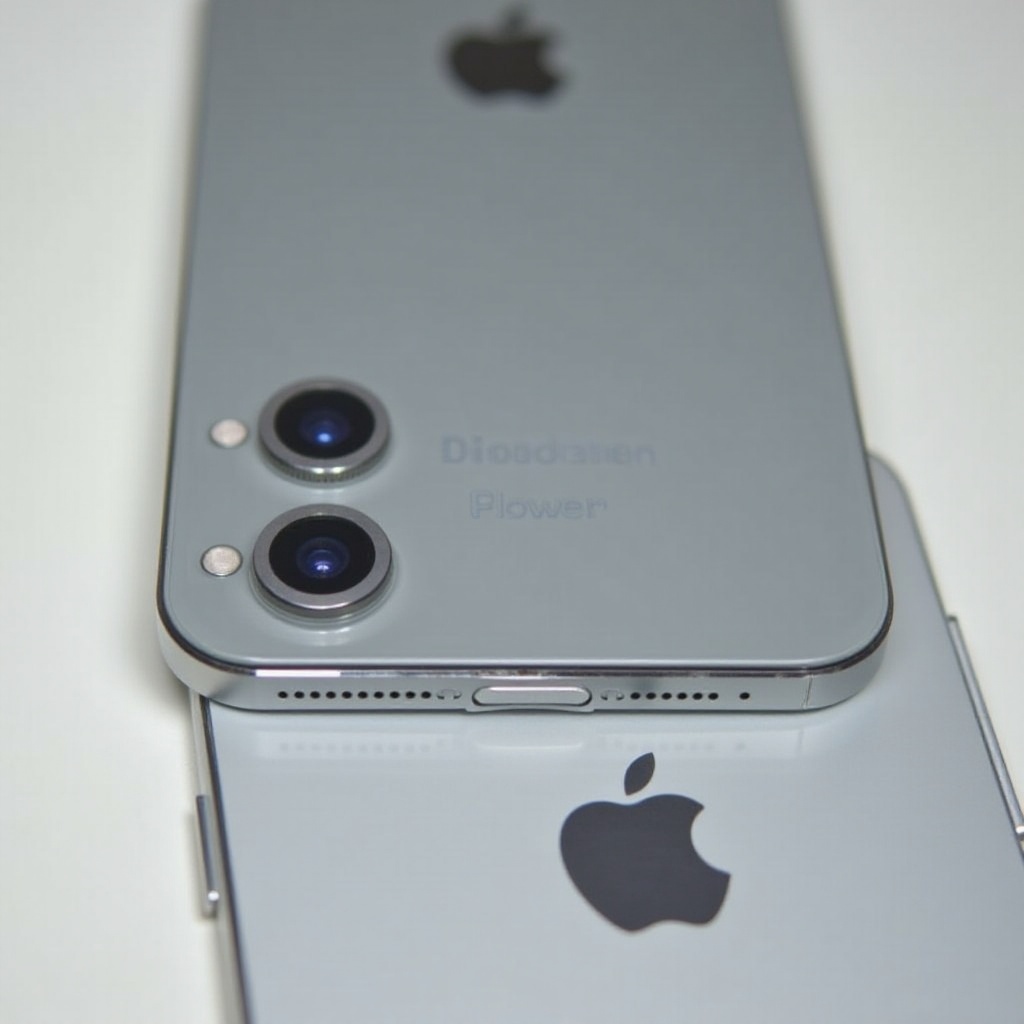
Understanding the iPhone 16 Microphone System
The iPhone 16 integrates multiple microphones within its design for optimal audio capture. These microphones ensure clarity and quality, no matter how you use your phone.
The primary microphone focuses on phone calls and recording, while additional microphones reduce background noise, ensuring clear audio even in bustling environments. Awareness of the iPhone 16’s audio configuration highlights the technological advancements that contribute to its superior functionality.
Locating the Microphones on iPhone 16
Knowing the precise locations of your iPhone 16 microphones is essential.
-
Primary Microphone Position: Situated at the bottom of the iPhone 16, the primary microphone is used for phone calls. Its placement is optimized for natural handling during conversations.
-
Secondary and Noise-Cancelling Microphones: These are strategically placed near the top and along the back, assisting in noise cancellation for clearer audio during video calls and recordings.
-
Visual Guide to Microphone Locations: Imagine holding your iPhone upright. You’ll find the main microphone along the device’s bottom edge, another in between the camera modules, and one near the front-facing camera. This setup ensures high-quality sound capture in various scenarios.
Enhancing Microphone Performance
To ensure that your iPhone 16’s microphones work correctly, regular maintenance and usage tips are vital.
-
Maintaining Microphone Quality: Gently clean around the microphone with a soft brush to keep dust away, ensuring unobstructed sound entry.
-
Effective Software Settings for Clear Audio: Navigate to ‘Settings’, then ‘Accessibility’, and activate ‘Phone Noise Cancellation’ for improved call clarity. Use audio apps to fine-tune mic settings for optimal performance.
Routine maintenance keeps your microphones in excellent condition, while troubleshooting skills equip you to handle any malfunctioning promptly.
Troubleshooting Common Microphone Issues
Despite best efforts, microphone issues might still arise. Recognizing these problems and knowing how to address them is beneficial.
-
Identifying Problem Signs: Be alert to muffled sound or reports from callers about difficulty hearing you.
-
DIY Troubleshooting Steps:
- Restart your iPhone to refresh the system.
- Ensure your phone case isn’t blocking the microphones.
- Record a voice memo to test clarity.
-
Install the latest iOS updates for potential fixes.
-
When to Seek Professional Help: If issues persist despite troubleshooting, consult an authorized service provider who can diagnose and repair hardware problems.
With resolved issues, your iPhone 16 will continue to deliver the exceptional audio quality you rely on.
Practical Uses of the iPhone 16 Microphone
The iPhone 16 microphones enhance your mobile experience through various applications.
-
Using Voice Commands and Siri: Engage Siri efficiently by speaking clearly into the top microphone for better voice command recognition.
-
Recording High-quality Audio: Use specialized apps to make the most of your microphone setup, capturing crisp audio for notes or performances.
-
Best Practices for Video and Voice Calls: For the best audio quality, avoid blocking microphones and opt for speaker mode to utilize additional microphones during calls. A natural holding angle ensures unobstructed input.
Understanding how these features work allows you to maximize the iPhone 16’s potential, making your device a powerful tool for communication and entertainment.
Conclusion
The iPhone 16’s microphones are engineered to provide superior audio quality. By knowing their locations, maintaining them, and troubleshooting efficiently, you can enhance your device’s functionality, ensuring seamless use for calls, recordings, and commands.
Frequently Asked Questions
How do I clean the microphone on my iPhone 16?
Gently use a soft, dry brush to clear away dust and debris from around the microphone openings.
Can the iPhone 16 microphone be replaced if damaged?
Yes, visit an authorized service provider to have the microphone replaced professionally.
How do I test if my iPhone 16 microphone is working properly?
Record a voice memo and play it back to ensure the audio is clear, indicating properly functioning microphones.